CFO and co-founder @Accompany, acquired by @Cisco. Turnaround CFO @Ning, sold to Glam Media. Former seed VC. McKinsey trained. @Wharton School and @Haas School of Business.
Most screens are rectangles pretending to be windows. A round screen is something else: a face, a dial, a portal. It refuses to be neutral.
The Waveshare display runs at 1080×1080 in a square framebuffer, with a circular viewport masked at the edges. Every piece of software running on it has to acknowledge the shape. There’s no place to hide UI chrome, no horizontal scrollbar that makes sense, no general-purpose desktop that doesn’t look immediately wrong.
The display doesn’t just shape the aesthetics. It shapes the behavior. Anything that looks like a computer breaks the illusion. So nothing on Signal One looks like a computer.
Display: Waveshare 5″ Circular Touch Display, 1080×1080 (square framebuffer, circular viewport), capacitive multi-touch
Core compute: Raspberry Pi 4B running Raspberry Pi OS Desktop
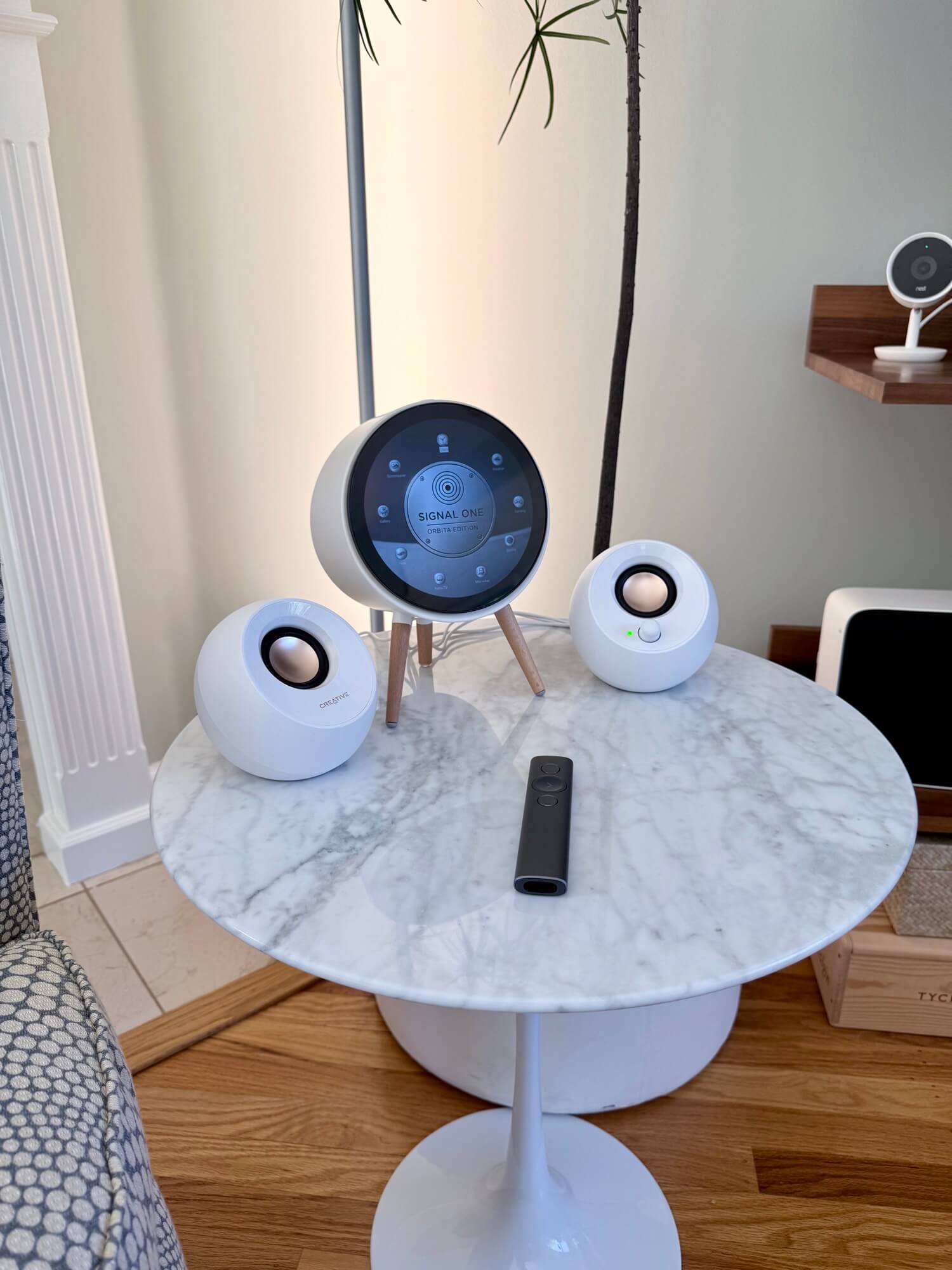
Enclosure: Repurposed space heater shell, trimmed to fit display and Pi, with legs adjusted for viewing angle
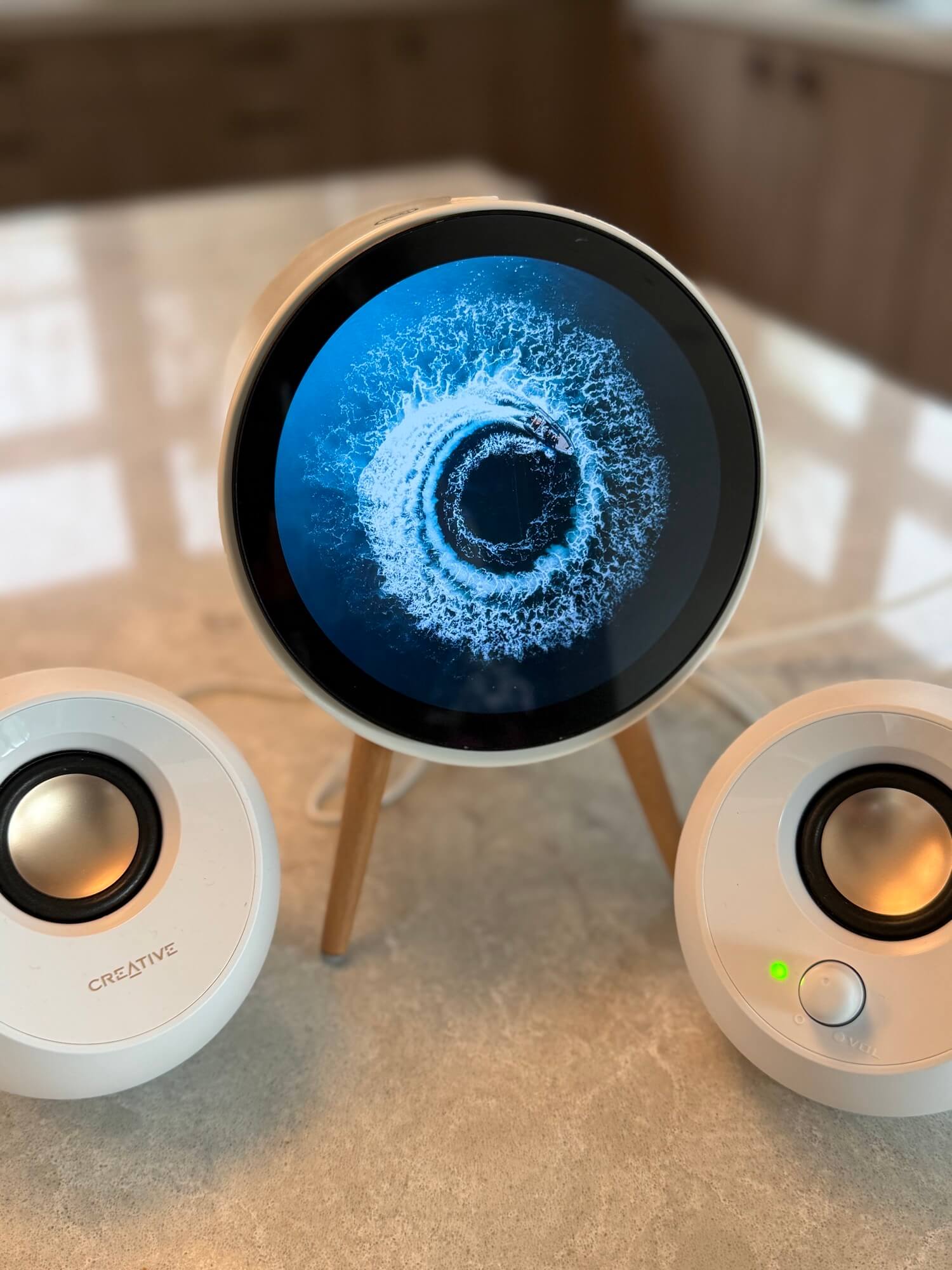
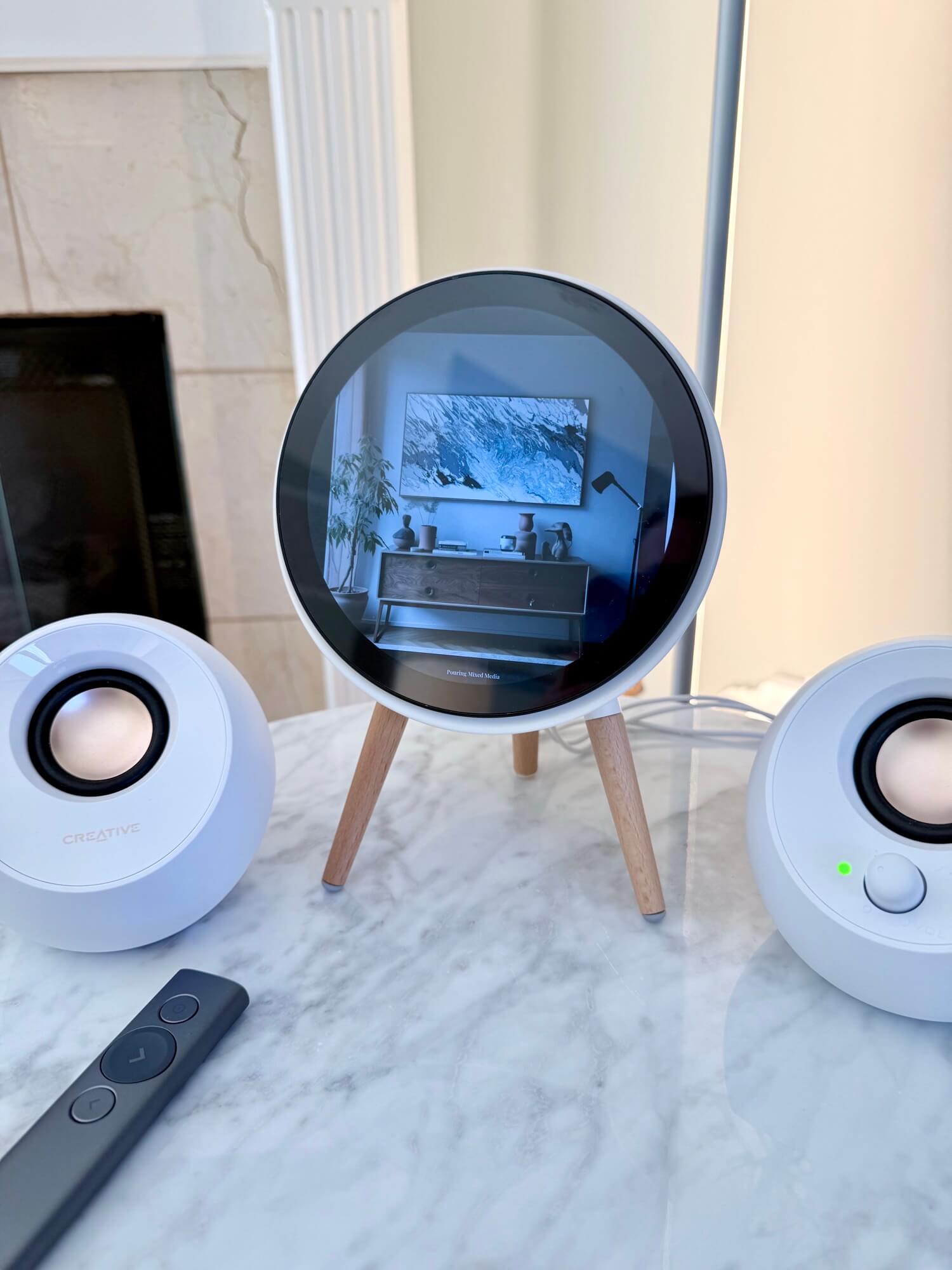
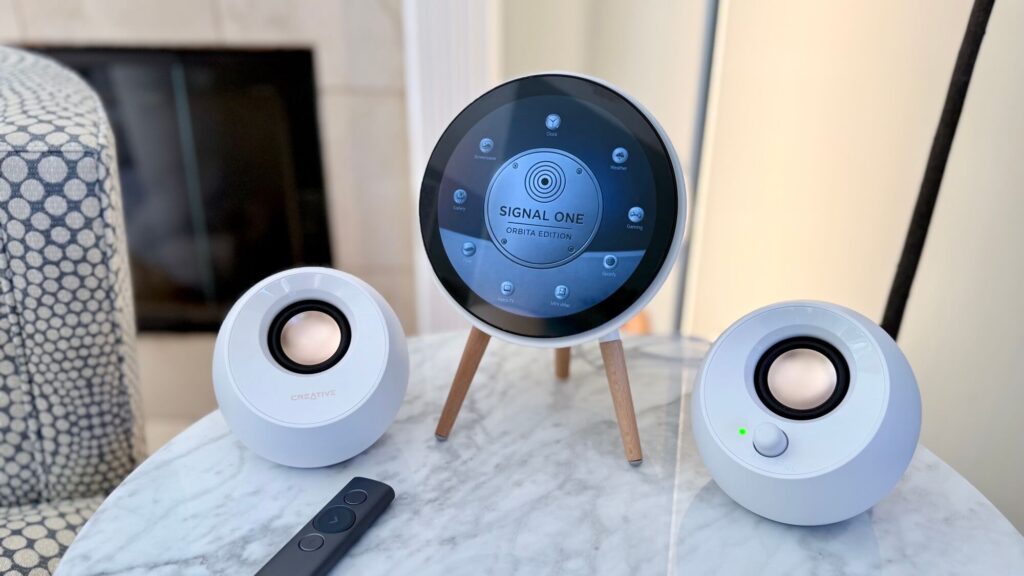
Audio: Creative Pebble speakers (white), powered via Raspberry Pi USB port, 3.5mm aux
Controls: Logitech Spotlight remote (channel changes), 2.4GHz Macally wireless keyboard and mouse (maintenance only)
Connectivity: Flush-mounted USB-A port on back plate for data transfer
The build sits on a desk like it belongs there — not as a computer, not as a gadget, but as an object with a clear purpose that’s slightly hard to name.
The desktop is not a desktop. It’s a control panel.
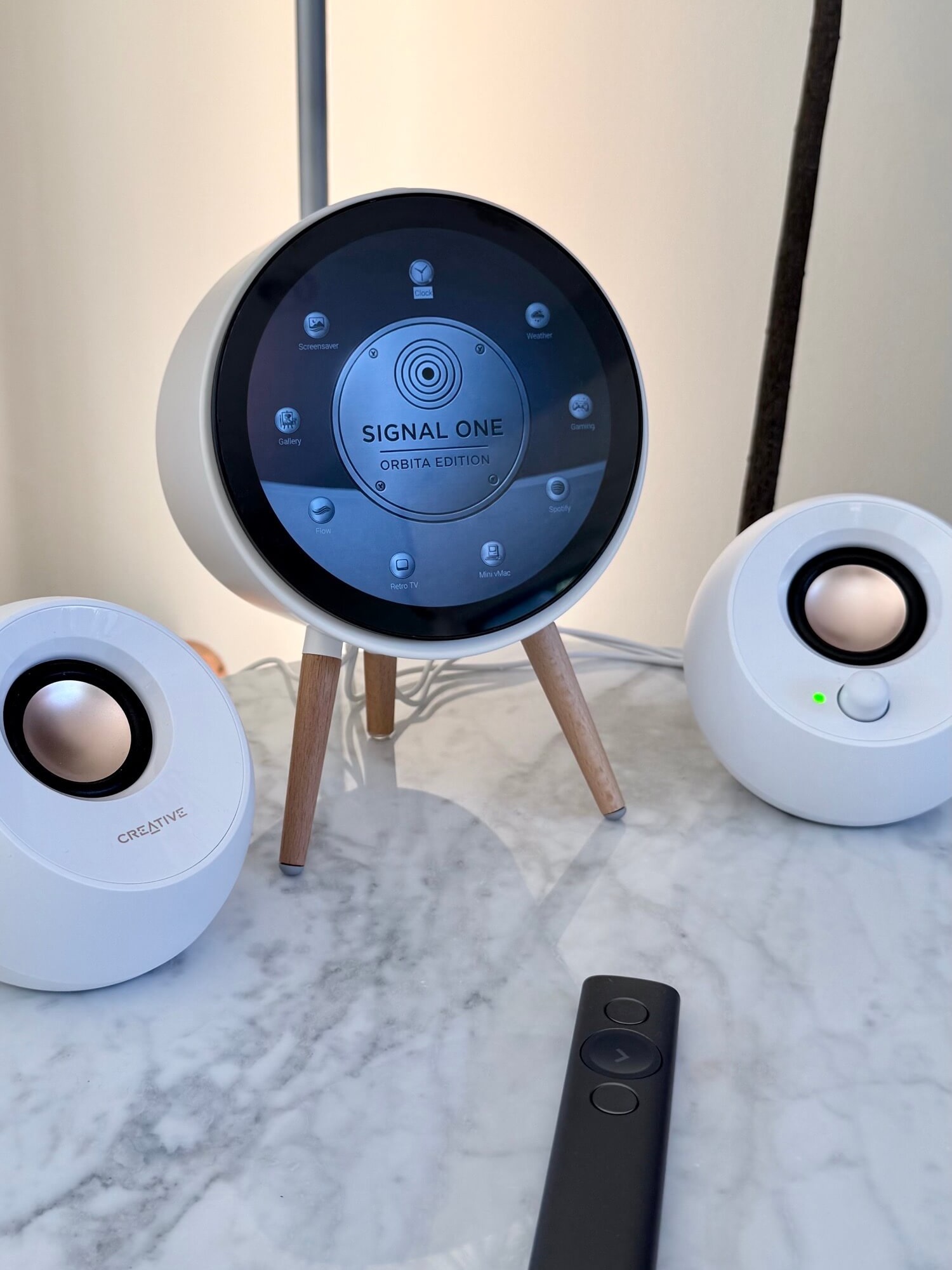
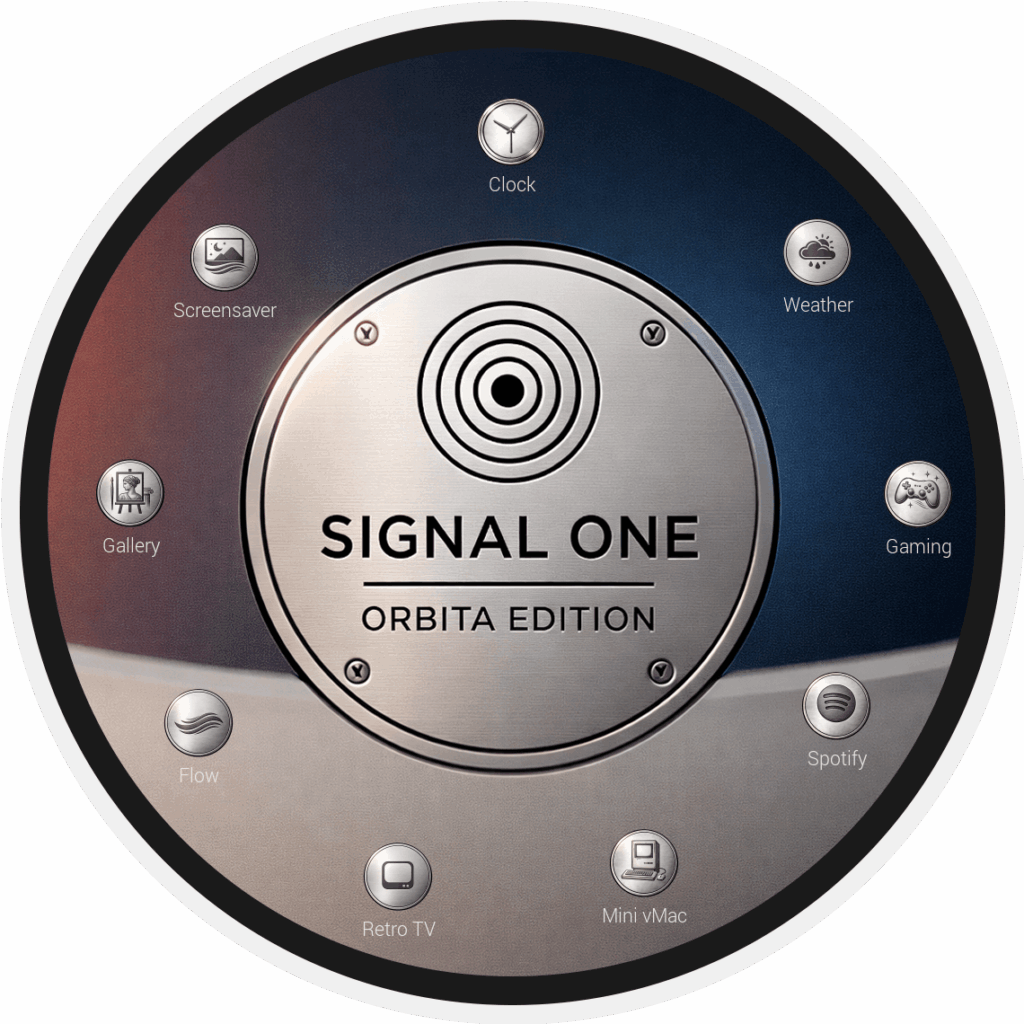
At the center: the Signal One — Orbita Edition badge. A brushed aluminum disc with signal rings, corner bolts, and the name engraved. Not a wallpaper in any conventional sense — a nameplate.
Arranged in orbit around it, eight mode buttons. Each one is a pressable metal-style icon with a single engraved pictogram. The arrangement is deliberate: Clock at the top, Weather upper right, Gaming mid right, Spotify lower right, Mini vMac and Retro TV at the bottom, Flow and Gallery on the left, Screensaver upper left.
It reads as a control panel for a device that knows exactly what it is.
Press any button, and the system commits. Chromium kiosk, MPV fullscreen, or a dedicated app — no window chrome, no escape route, no visible indicator that a general-purpose computer is involved. The round display handles the masking. The scripts handle the rest.
To return to the control panel: the Logitech Spotlight remote, or the keyboard for maintenance. The panel is the home state. Everything else is a mode.
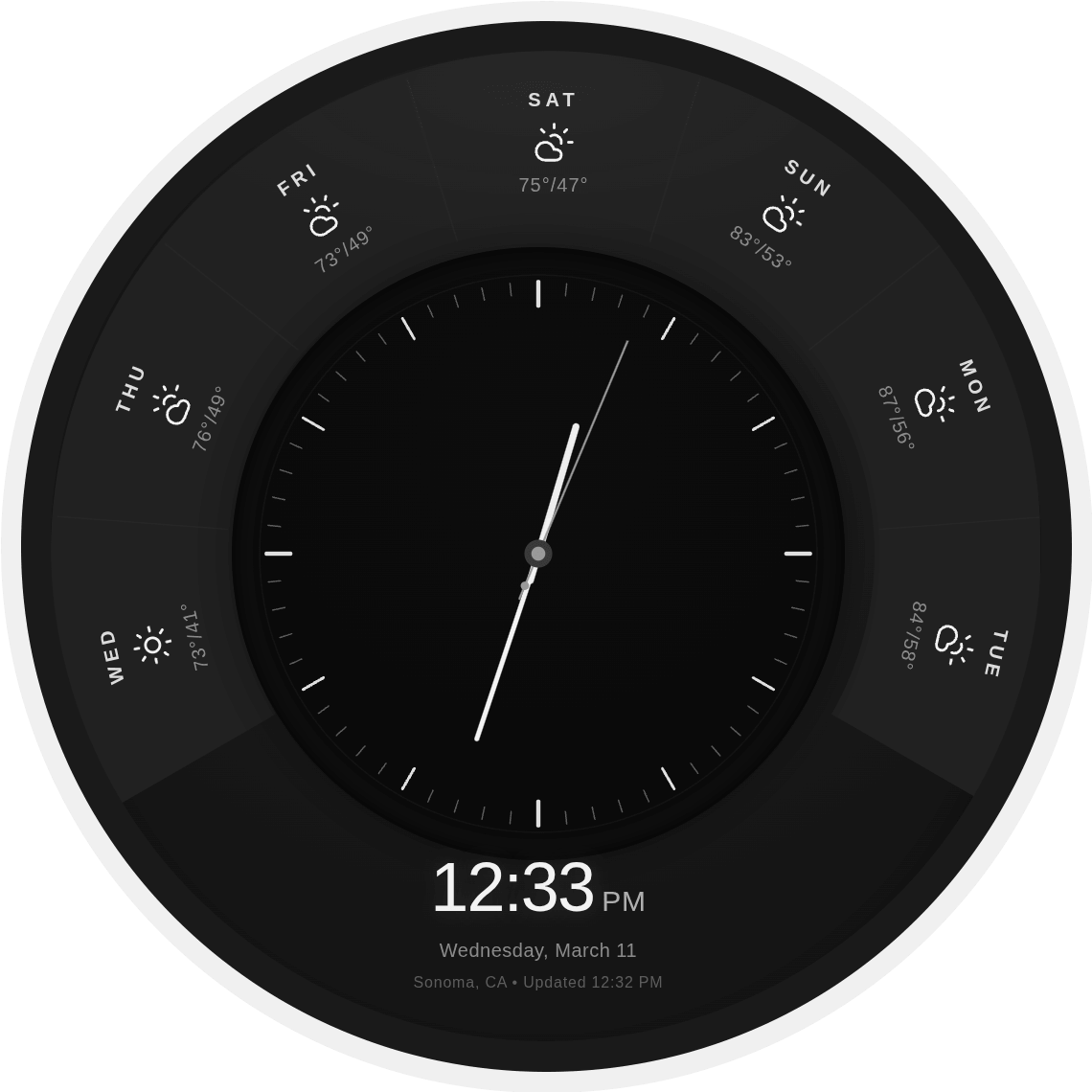
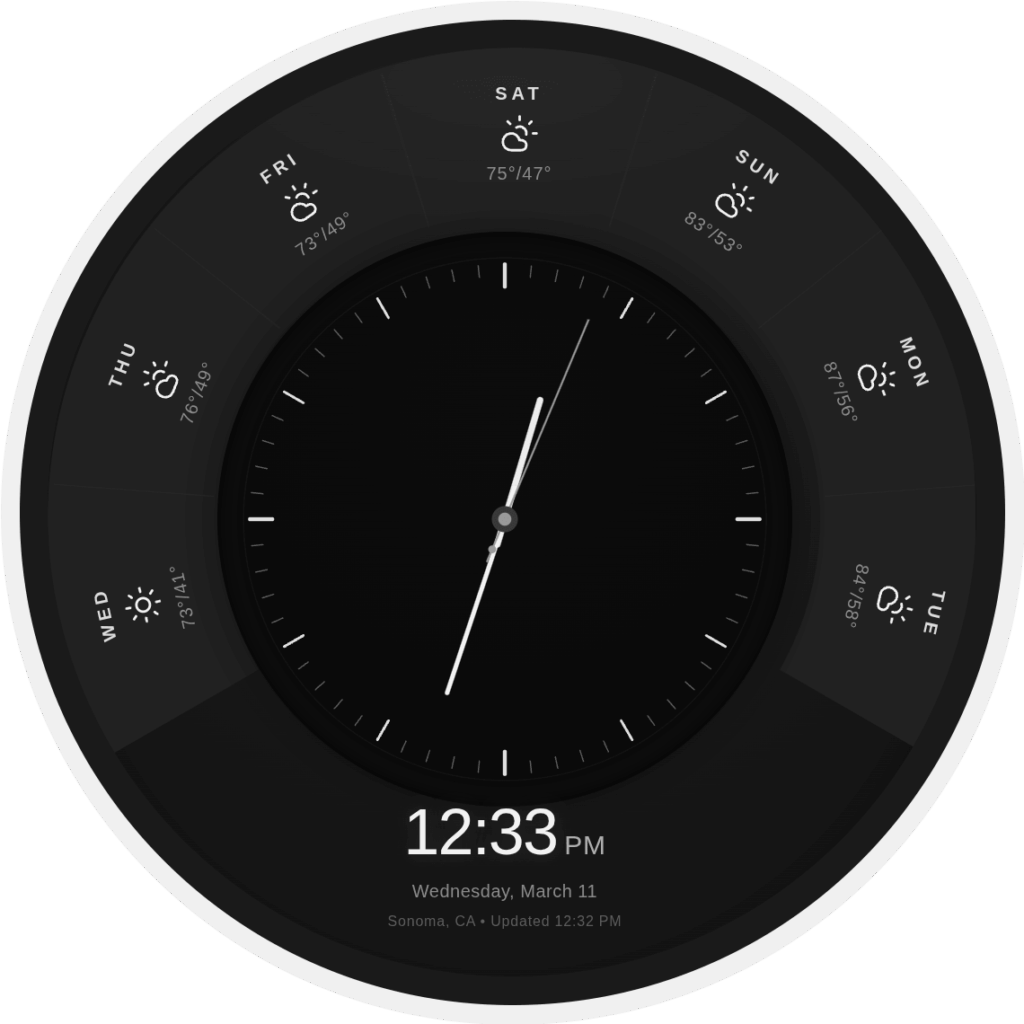
CLOCK — An analog clock face sits inside an orbital weather ring. The ring shows a 7-day forecast arranged around the full circumference: day labels rotated to follow the arc, weather icons, high/low temperatures. Below the clock face: digital time, full date, location, and last-updated timestamp. The whole composition is designed for the circular viewport — nothing bleeds to the corners, nothing needs to be rectangular. This is the default idle state. The system returns here after inactivity.
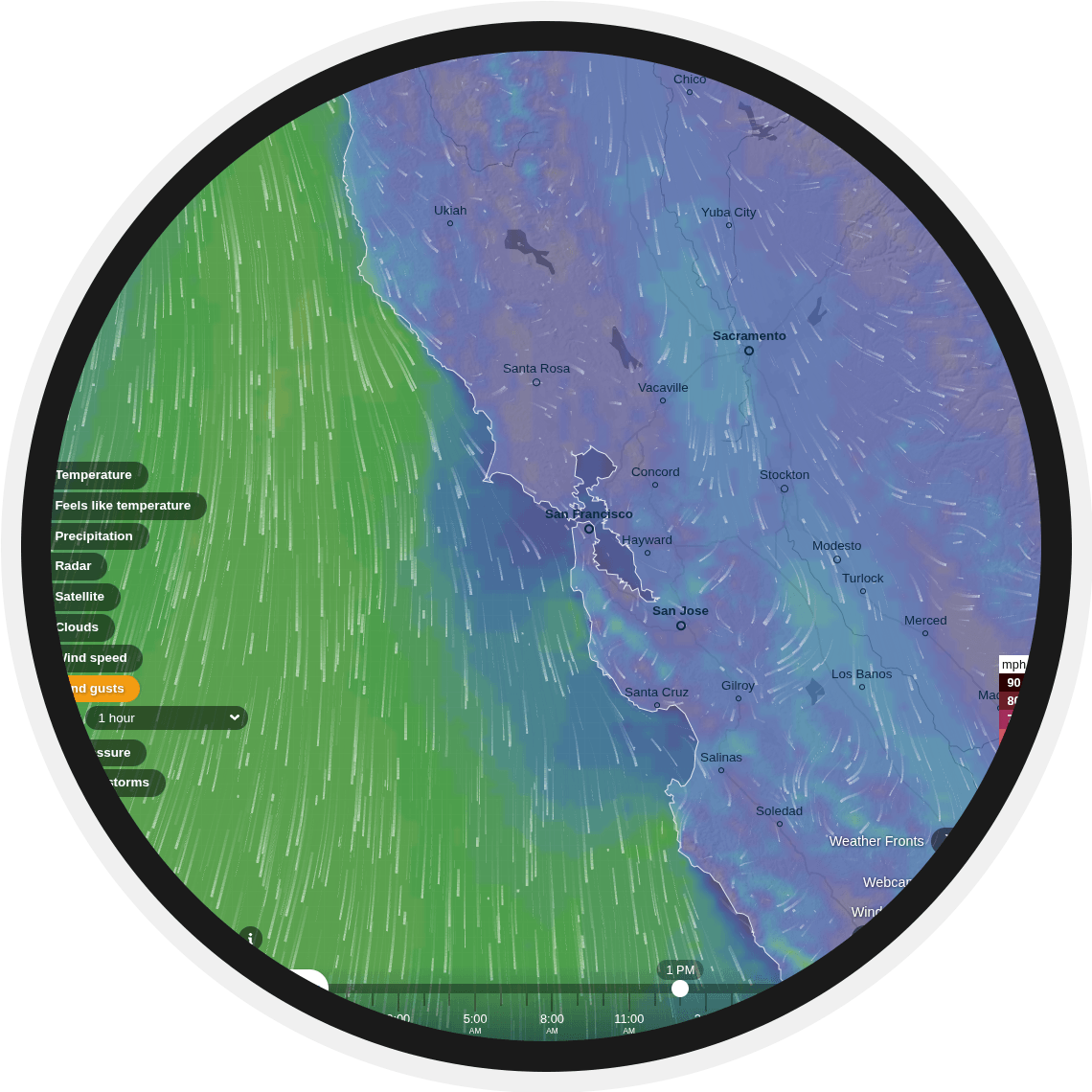
WEATHER — Ventusky in full-screen Chromium kiosk. Live animated wind, precipitation, radar, and cloud maps centered on the Bay Area. This is not a weather forecast — it’s weather as a phenomenon. Wind gusts animate in real time across the California coast; atmospheric pressure fronts drift through the Central Valley; the color gradient shifts as conditions change. On a round display, a full-screen animated weather map stops reading as a utility and starts reading as an instrument. The clock tells you what the day will be. Weather shows you what the atmosphere is doing right now.
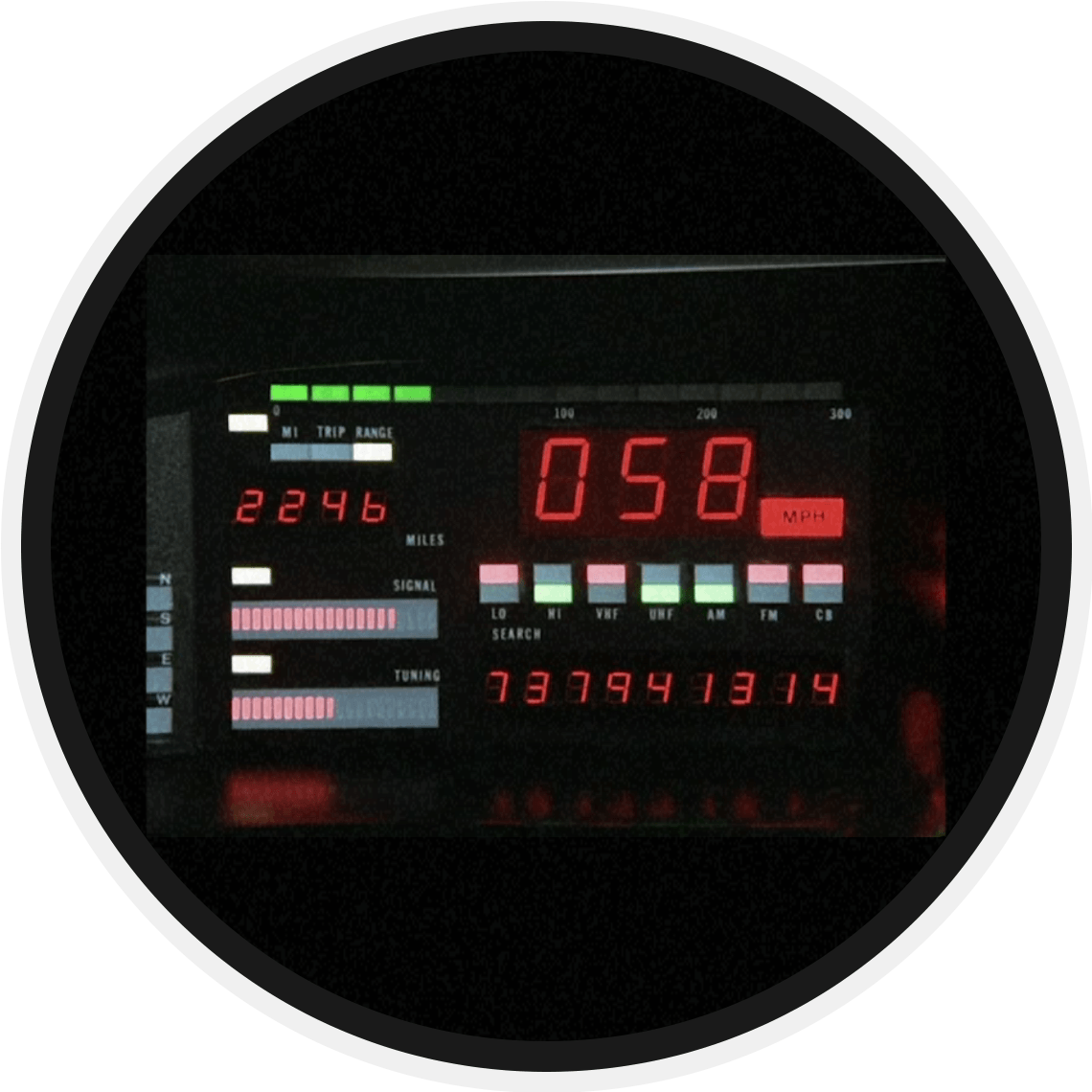
RETRO TV — Full-screen video playback, with simulated static between channel changes. The Logitech Spotlight remote changes channels. The screen doesn’t know it’s a Pi. Neither does the room.
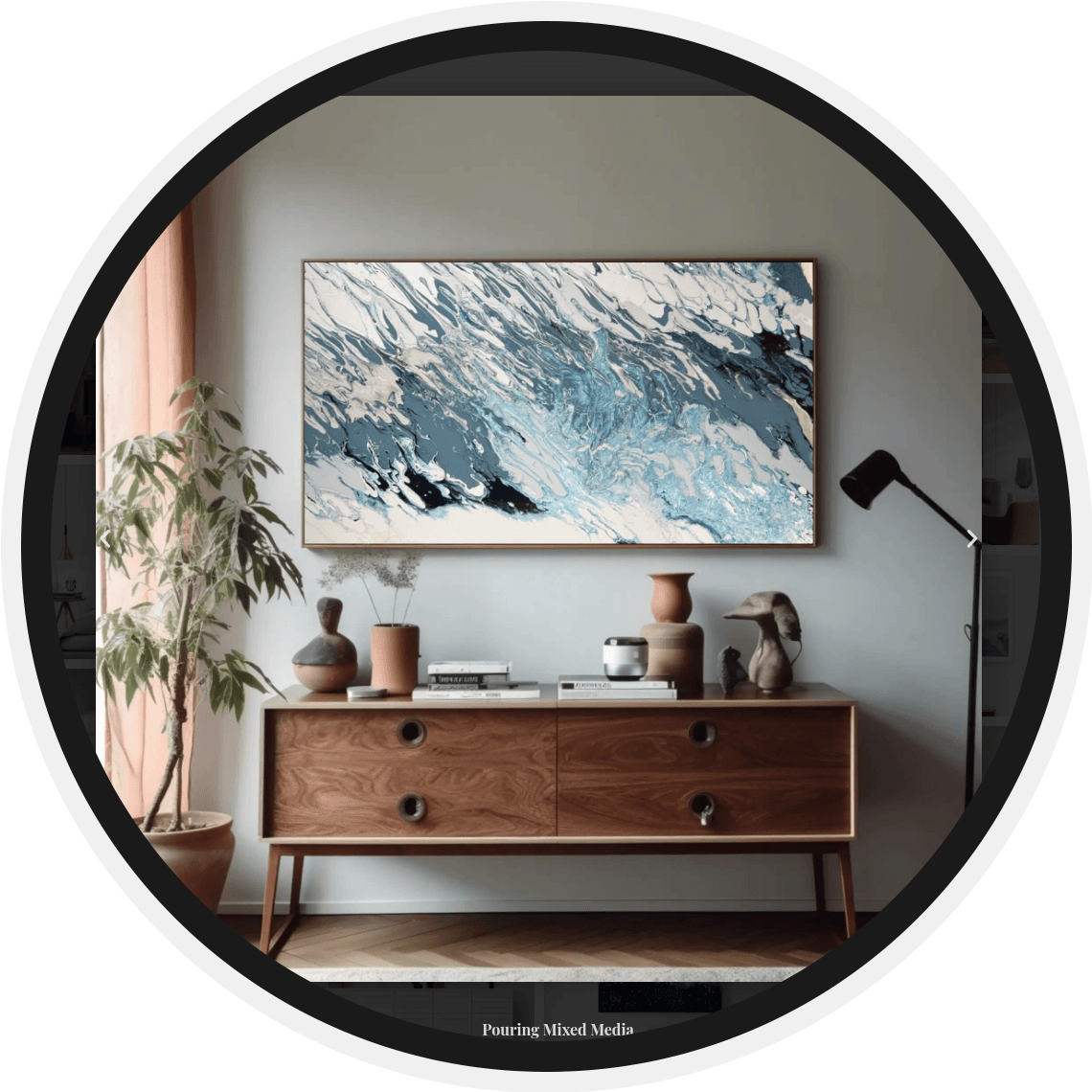
GALLERY — The Act2.art gallery in Chromium kiosk mode: my own paintings, shown contextually in room settings. Abstract pours, fluid mixed media, blues and teals and deep reds — a cohesive body of work that happens to display well on a circular screen. 29 pieces, browsable with the remote. Seeing your own work cycle through on a dedicated round display in your workspace is not the same experience as seeing it on a monitor.
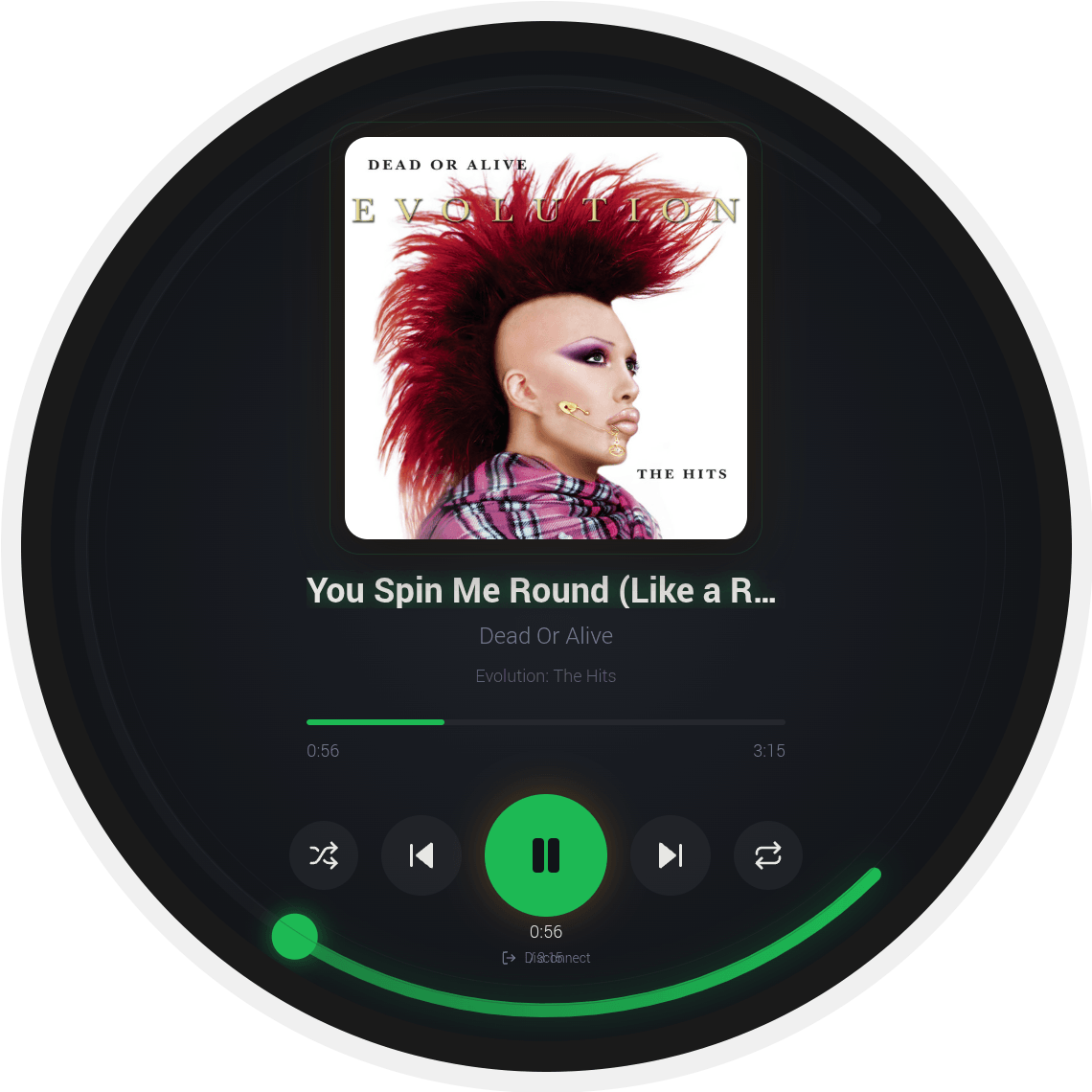
SPOTIFY — A custom Spotify player where the progress bar wraps around the circular edge of the display. Album art centered, track info below, playback controls at the bottom — and a green arc scrubbing clockwise around the whole circumference as the track plays. Scrubbing is done by dragging along the edge. The round display doesn’t just display the player; it makes the interaction better than it would be on a rectangle. (The first track confirmed playing on this display: You Spin Me Round by Dead or Alive. Intentional.)
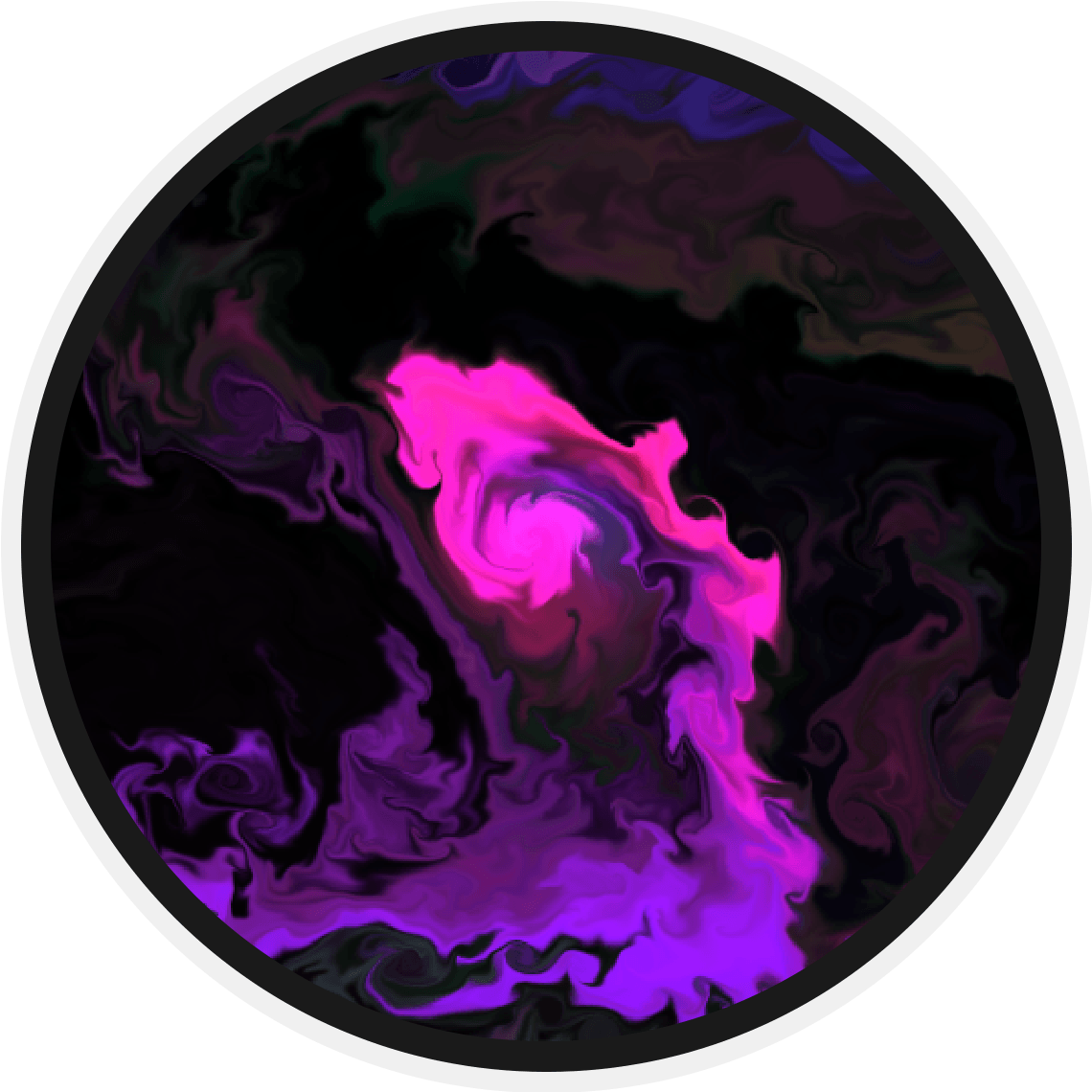
FLOW — A fluid dynamics web app in kiosk mode. Particularly good as a touchscreen mode — the circular display makes the bounded fluid simulation feel intentional rather than cropped.
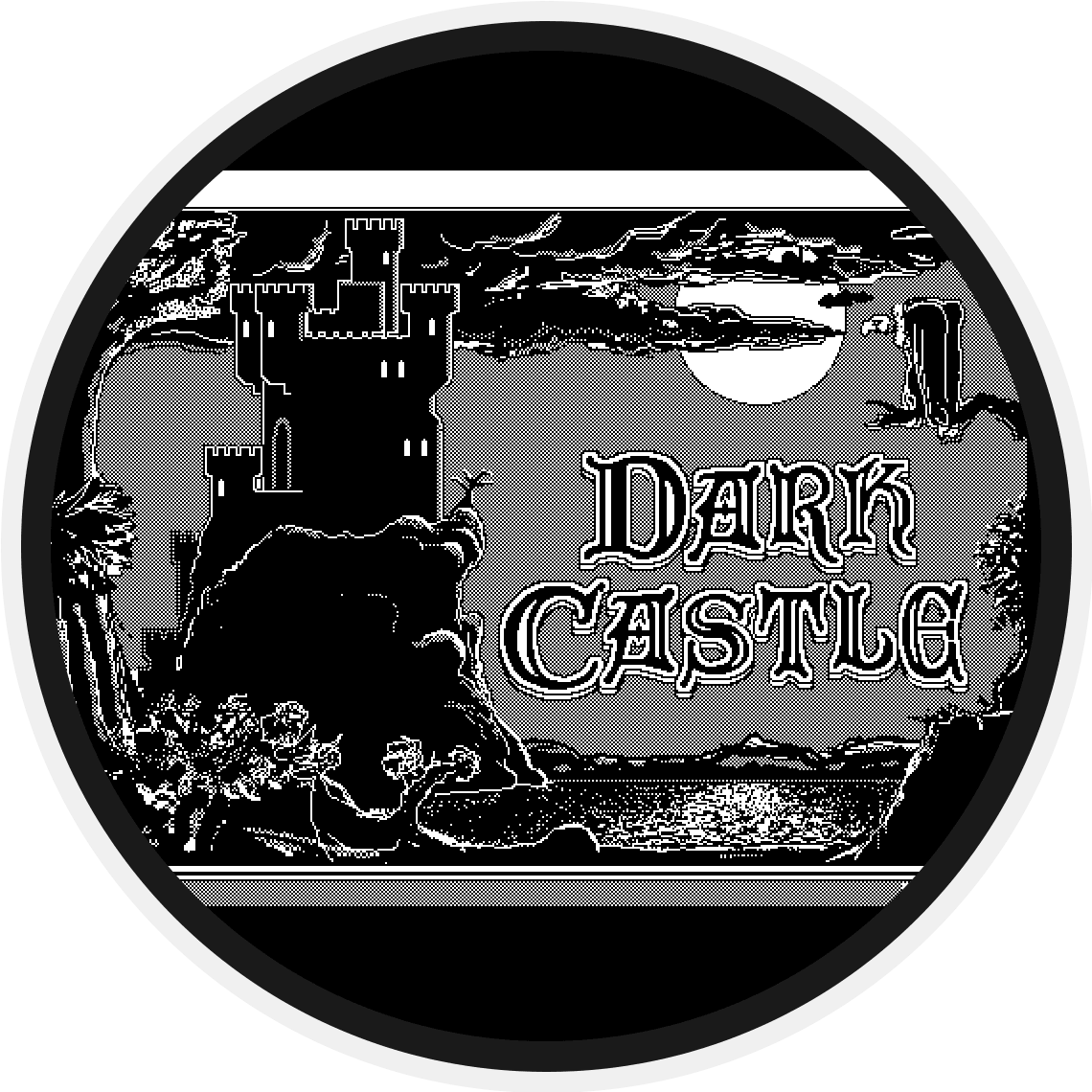
MINI VMAC — Mini vMac running Dark Castle at a fixed resolution. No windowing, no resizing. The game as it was meant to be experienced.
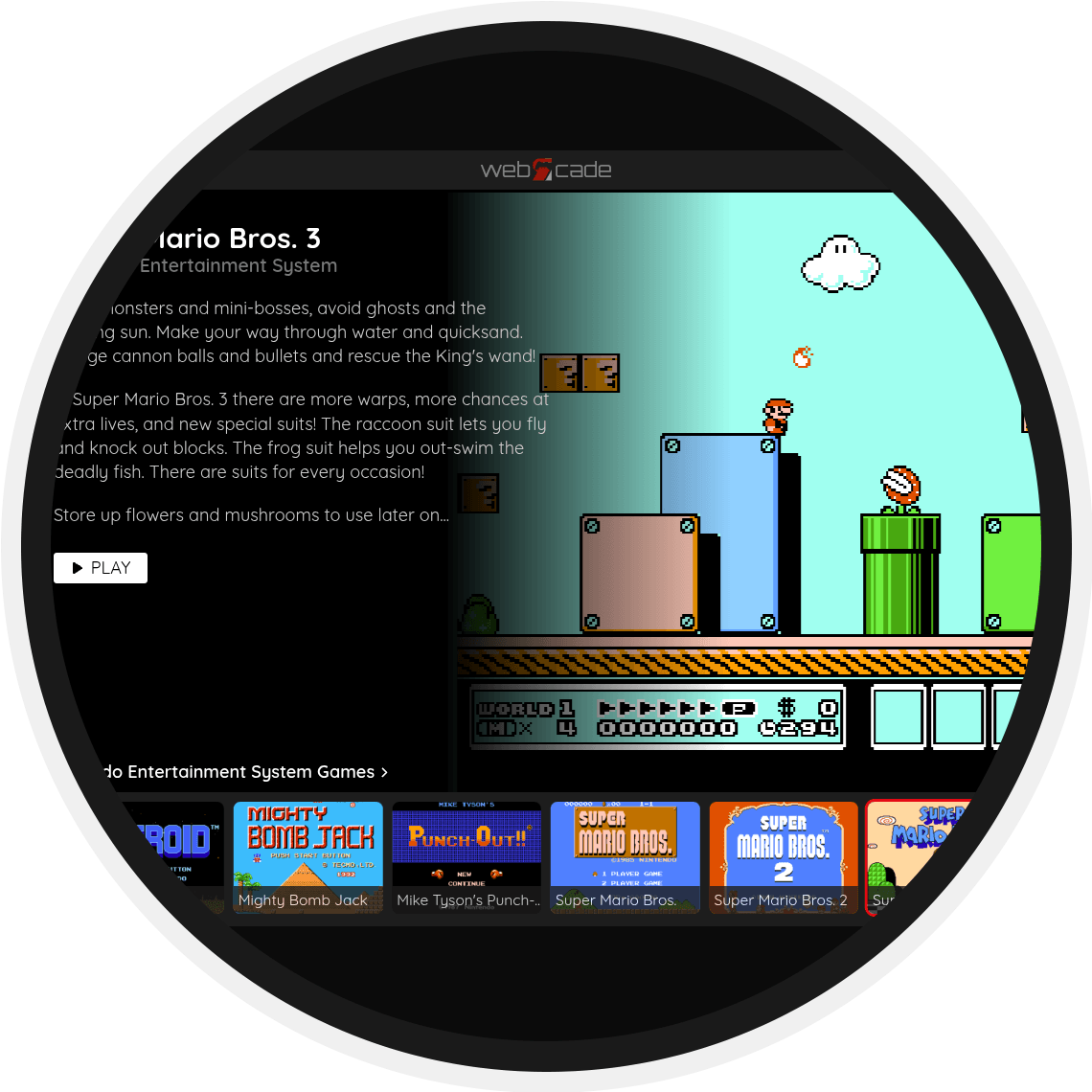
GAMING — WebRCade in Chromium kiosk, loaded with a personal feed of Atari 2600, NES, and MAME favorites. Not a full EmulationStation install — deliberately not. The distinction matters: EmulationStation turns a device into a retro gaming console. WebRCade is a browser tab with Super Mario Bros 3 in it. Signal One stays what it is. You click in for an occasional speed run and click back out.
SCREENSAVER — Round-display optimized: black corners, imagery centered inside the circular mask. Launches automatically after the clock idles.

The clock deserves its own mention because what kind of clock belongs on a round screen.
The answer turned out to be neither “instrument clock” nor “orbital sweep clock” as separate choices — it’s both, layered. The inner face is a clean analog instrument: thin tick marks, slender white hands, no numerals, black background, a small center hub. Pure Braun. The outer ring is a 7-day orbital weather forecast, with day labels and icons arranged to follow the circle’s arc.
It functions as two things simultaneously: a clock you read at a glance, and a weather instrument you read at a slightly longer glance. Neither intrudes on the other.
No date displayed on the clock face itself — that lives below, in the digital readout, where it belongs. No seconds hand by default. No blinking. The clock doesn’t demand attention. It rewards it.
The Logitech Spotlight does one thing per mode: changes channels in RetroTV, advances slides in Gallery, scrubs in Spotify. It has no idea it’s a TV remote. Neither does the experience.
The desktop button icons don’t represent apps. They represent states. The system knows the difference.
When keyboard or mouse work is needed — rare, but occasionally necessary — the Macally wireless set appears and disappears. It doesn’t live on the desk.
The object is called Signal One — Orbita Edition.
Signal One because it belongs to a lineage of broadcast objects: TV → Radio → Signal. It transmits. It receives. It holds attention the way a dedicated device does, not the way a general-purpose computer does.
Orbita because everything is round. The display, the speakers, the design language, the signal rings on the badge. The name sounds like something Braun might have released in 1969 and never did.
Signal One is built around a simple rule: every experience behaves like a dedicated appliance. To make that work, most modes are launched via shell scripts that place the desktop into a kiosk-like state, or launch a single application in full-screen with no visible escape path.
#!/usr/bin/env bash
# launch-kiosk.sh
URL="$1"
chromium-browser \
--kiosk \
--noerrdialogs \
--disable-infobars \
--disable-session-crashed-bubble \
--disable-translate \
--autoplay-policy=no-user-gesture-required \
"$URL"
#!/usr/bin/env bash
# round-screensaver.sh
feh \
--fullscreen \
--hide-pointer \
--slideshow-delay 10 \
--auto-zoom \
--image-bg black \
/home/pi/screensavers/orbita/
Each mode is launched via a desktop icon styled as a pressable metal button. The icons don’t represent apps—they represent states.
Example .desktop entry:
[Desktop Entry]
Type=Application
Name=Signal One — RetroTV
Exec=/home/pi/bin/retro-tv.sh
Icon=/home/pi/icons/signal-retrotv.png
Terminal=false
Categories=SignalOne;